

Qualitative questions are closed-ended questions: the respondent selects their answer from a list of predefined options. This is the most commonly used type of question in questionnaires because it greatly facilitates the statistical analysis of results.
1. Operation #
1.1- Principle #
To be valid, a qualitative question must contain:
- A name — the wording of the question
- At least one answer — the options offered to the respondent
- An empty line at the end of the list — to mark the end of the responses
Limit : Up to 250 answers can be offered for the same question.
By default, any new question created is of type high-quality, single-choice.
1.2- Hide a label #
It is possible to make a label invisible to respondents while still keeping it in the results. To do this, enclose the text in curly braces: {label1}
The content between curly braces will appear in exports and results, but will not be displayed when completing the questionnaire.
2. Settings #
2.1- Tab type #
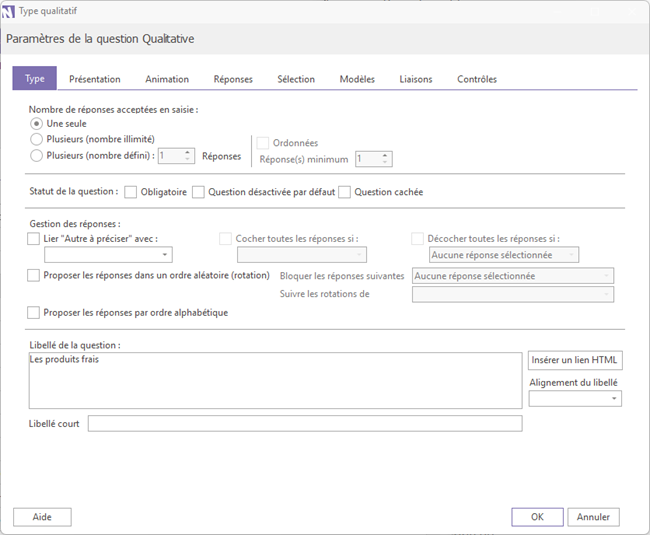
2.1.1- Number of responses: #
This setting defines how many answers the respondent can select:
- Single choiceonly one answer possible (default option)
- Multiple answers, unlimitedThe respondent can select as many answers as they wish.
- Several limited answersA maximum number of responses is set; an error message is displayed if this threshold is exceeded.
- Ordered answersAvailable only with the Limited Multiple Responses option, this option allows the respondent to rank their answers in order of preference.
2.1.2- Other options #
- Required / Hidden / DisabledThe question can be made mandatory, hidden, or disabled by default depending on the needs of the questionnaire.
- Connection "Other, please specify"«This allows you to link the last answer in the list (for example, "Other") to a text field. When the respondent selects this option, an associated text field becomes active so they can elaborate on their answer. To configure this link, select the "Link 'Other to be specified' with" option and then select the corresponding text question from the drop-down list. The text field remains grayed out until the "Other" option is selected.
- Random order of responsesThe answers can be presented in a random order each time they are displayed. For more information, see the article [Question Rotation].
2.2- Presentation tab #
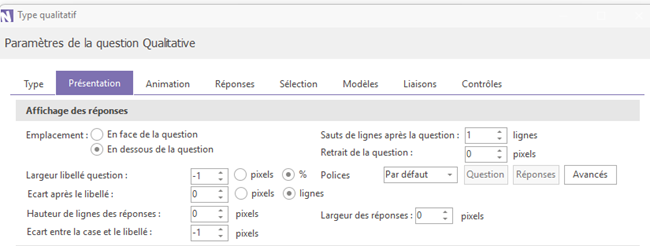
This section allows you to adjust the visual formatting of the question:
- Response layout — modify the position of the answers relative to the question, as well as the spacing between them
- Police — By default, the font used is the one defined for the entire questionnaire. The drop-down list Police allows you to customize it only for the current question
To learn more about the formatting, selection method or graphic appearance of the responses, see the [Selection Tab] section of this article.
2.3- Animation Tab #
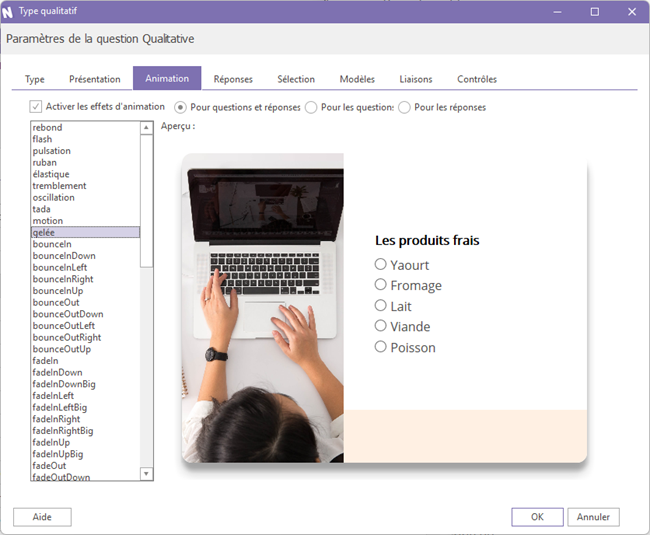
This tab allows you to apply animation effects to questions and answers when the respondent arrives on the page.
To activate this feature, check the box Enable animation effects. You will then have access to a list of over sixty available effects. By selecting an effect, a preview will appear directly, allowing you to view it before confirming your choice.
2.4 - Answers tab #
This tab allows you to show or hide certain answers to the current question, depending on what the respondent answered on previous pages of the questionnaire.
Two types of control are available:
- Control by previous qualitative question : checks if an answer with the same wording has been selected in one or more previous questions. Note that the match must be spelled exactly.
- Advanced controls They are useful when questions do not share the same answer labels, allowing for more personalized display conditions.
2.5 - Selection Tab #
This tab allows you to customize how the question answers are displayed. Several selection methods are available; here are the most common:
- Checkbox : the default selection mode
- Button In most cases, we recommend using the standard formatting without adding an image to the image column of the response.
- Drop-down list Reserved for single-choice questions. Note that some features are not compatible with this mode, such as randomizing the display of answers.
- Cursor Reserved for single-choice questions, it is particularly well-suited to satisfaction, intensity, or rating scales. Some key points:
- We recommend using sliders of the type without bar
- The number of answers entered in the question must exactly match the number of items displayed on the slider. For example, a slider ranging from 0 to 10 requires 11 answers
- By default, the order of responses is reversed to match the usual order of satisfaction scales. Depending on the order in which you entered your responses, you may need to uncheck the corresponding box.
2.6 - Link Tab #
A connection allows the answer to the current question to be automatically populated by retrieving an existing value. Three sources are available:
- From a data file : select your file in Ethnos format (.g01), then in the area «"Return the answer to the question"», Select the question whose answer you want to use. During deployment, the .g01 file will be automatically deployed along with the questionnaire.
- From the database of correspondents : In «"Retrieve the value from the following field"», click on Field to select the desired field. To learn more about the correspondent database, see the article [correspondent database].
- Based on a previous question : In «"Retrieve the value from the following field"», click on Value. A window will open with a list of the questionnaire questions; select the one whose answer you wish to retrieve. Two conditions must be met: the source question must be located on a page prior to the current question, and it must have already been answered.
2.7 - Controls Tab #
This tab allows you to adapt the current question based on the answer given to another question in the questionnaire.
Attention, Only one control can be defined per question.
In the block Question to be checked, Select a question from the questionnaire and then choose the value that will serve as the condition. When this condition is met, three actions are possible:
- Disallow a response (block "Value to be prohibited") : prevents the respondent from selecting a specific answer in the current question
- Automatically assign a response (block "Value to be assigned") : automatically selects one of the answers to the current question
- Display a message (block "Message to display") : displays a personalized message to the respondent
